


Description
Download Cigati MBOX Converter – Free Windows MBOX Conversion Tool
Overview
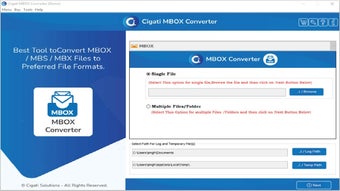
Cigati MBOX Converter is a free Windows application developed by Cigati Solutions, positioned in the “Backup & Cloud Storage” category. The program specializes in converting MBOX files—a standard email archive format—into a variety of more accessible formats such as PST, EML, MSG, and PDF. Its intuitive user interface and straightforward workflow make it an attractive choice for anyone who needs to migrate, backup, or simply view email data stored in MBOX containers. Whether you’re an IT professional handling large‑scale mailbox migrations, a legal professional needing evidence‑ready email exports, or a casual user looking to free up space in an email client, Cigati MBOX Converter offers a reliable, no‑cost solution that runs natively on Windows. The tool focuses exclusively on MBOX conversion, eliminating the clutter of unrelated features and ensuring a fast, secure, and dependable conversion experience.
Key Features of Cigati MBOX Converter
- Multi‑format output: Convert MBOX files to PST (Outlook), EML, MSG, PDF, and plain text formats.
- Batch processing: Load and convert multiple MBOX files simultaneously, saving time on large projects.
- Preserves metadata: Retains original timestamps, sender/recipient information, and attachment data during conversion.
- Drag‑and‑drop interface: Users can simply drag MBOX files into the main window to start conversion.
- Selective export: Choose specific folders or date ranges within an MBOX file for targeted conversion.
- Zero‑cost licensing: The software is completely free for personal and commercial use.
- Secure conversion: All processing happens locally; no data is uploaded to the cloud, protecting privacy.
- Automatic updates: The application checks for updates on launch, ensuring you always have the latest bug fixes and format support.
- Lightweight footprint: Requires less than 50 MB of disk space and runs smoothly on modest hardware.
- Comprehensive logging: Generates detailed logs for each conversion session, useful for troubleshooting and audit trails.
Step‑by‑Step Installation & Usage Guide
Installing Cigati MBOX Converter is a breeze, even for users with limited technical background. Follow these steps to get the program up and running:
- Download the installer: Visit the official Cigati Solutions website and click the “Download Free” button. The file is named
CigatiMBOXConverterSetup.exeand is less than 30 MB. - Run the installer: Double‑click the downloaded executable. Windows will prompt you to confirm that you want to allow the app to make changes to your device; click “Yes”.
- Accept the license agreement: Read the brief EULA, then select “I accept the agreement” and click “Next”.
- Choose installation folder: The default path is
C:\Program Files\Cigati\MBOXConverter. You can change it if you prefer a different location. - Complete the installation: Click “Install”. The process typically finishes within a minute. Once done, you can launch the program immediately by checking “Launch Cigati MBOX Converter” and clicking “Finish”.
Using the software follows a similarly intuitive flow:
- Add MBOX files: Click the “Add Files” button or drag your MBOX files directly onto the main window.
- Select output format: From the dropdown menu, choose the desired target format (e.g., PST, PDF, EML).
- Configure conversion options: If you need to export only certain folders or a specific date range, click “Advanced Settings” and make your selections.
- Choose destination folder: Specify where the converted files should be saved.
- Start conversion: Press the “Convert” button. A progress bar appears, and you can monitor the real‑time log for any warnings.
- Review results: Once conversion finishes, the program opens the destination folder automatically, allowing you to verify the output files.
Because the conversion engine runs locally, there is no need for an internet connection after installation, which makes the tool ideal for secure environments or offline workflows. Additionally, the built‑in log file (conversion_log.txt) can be exported for record‑keeping or support requests.
Compatibility, Pros & Cons
Cigati MBOX Converter ReviewCigati MBOX Converter delivers exactly what its description promises: a free, reliable, and easy‑to‑use solution for converting MBOX files on Windows. The application’s focused feature set eliminates the learning curve often associated with larger, multipurpose email tools. Users appreciate the batch processing capability, which dramatically reduces the time needed for large migrations. The local‑only processing model is a strong point for privacy‑concerned users, and the automatic update checker ensures ongoing compatibility with newer email formats. While the UI is functional, it may feel a bit dated compared to modern SaaS tools. Overall, the converter scores high on performance, reliability, and cost‑effectiveness.
Pros
- Completely free for both personal and commercial use.
- Supports a wide range of output formats, including PST for Outlook integration.
- Batch conversion saves time on large projects.
- Preserves email metadata and attachments accurately.
- Local processing guarantees data privacy.
- Lightweight installer and low system requirements.
- Automatic update notifications keep the software current.
- Detailed logs aid troubleshooting and audit compliance.
Cons
- Interface looks dated; lacks modern visual polish.
- No native macOS or Linux version (Windows‑only).
- Advanced filtering options are limited compared to enterprise‑grade tools.
- No built‑in email client preview; users must open converted files in external apps.
- Technical support is community‑based; no dedicated phone line.
Frequently Asked Questions
Can I convert MBOX files to Outlook PST on a Windows 10 PC?
Yes. Cigati MBOX Converter includes native PST export, allowing you to import the resulting file directly into Microsoft Outlook on Windows 10 (or any supported version).
Is there a limit to the size of an MBOX file I can convert?
The software itself imposes no hard limit, but conversion speed depends on your system’s RAM and CPU. For very large archives (several gigabytes), ensure you have at least 8 GB of RAM and enough free disk space for the output files.
Do I need an internet connection after the program is installed?
No. All conversion processes occur locally on your computer. An internet connection is only required for the initial download and to check for updates.
Can I convert only a specific folder inside an MBOX file?
Yes. The “Advanced Settings” dialog lets you select individual folders or date ranges, enabling targeted conversions without processing the entire archive.
Is the software compatible with Windows 7?
Absolutely. Cigati MBOX Converter supports Windows 7, 8, 10, and 11, making it suitable for older corporate environments as well as modern desktops.
Conclusion – Why You Should Download Cigati MBOX Converter Today
When it comes to handling email archives, having a trustworthy conversion tool is essential. Cigati MBOX Converter delivers a powerful feature set without any cost, making it an ideal choice for individuals and businesses alike. Its ability to batch‑process files, preserve critical metadata, and output to widely used formats such as PST and PDF ensures that your email data remains accessible and portable. While the UI could benefit from a visual refresh, the core functionality is rock‑solid, fast, and secure.
If you’re looking for a free, Windows‑only solution that respects your privacy and streamlines the migration of MBOX files, this tool checks every box. Download it now, follow the simple installation steps, and start converting your email archives with confidence.
Download Cigati MBOX Converter for free and experience hassle‑free email conversion today!
Guides & Tutorials for Cigati MBOX Converter
How to install Cigati MBOX Converter
- Click the Preview / Download button above.
- Once redirected, accept the terms and click Install.
- Wait for the Cigati MBOX Converter download to finish on your device.
How to use Cigati MBOX Converter
This software is primarily used for its core features described above. Open the app after installation to explore its capabilities.
User Reviews for Cigati MBOX Converter 0
No reviews found





